 how-to
How to Connect a Smart Lock to Wi-Fi Without the Guesswork
Last Updated: October 30, 2026
Quick Summary
To connect a smart lock to Wi-Fi, first pair it to the maker's app over Bluetooth, then open the lock's device settings, select your 2.4 GHz network, and enter the password exactly. Wait up to a minute, then confirm it's online by locking and unlocking from the app on cellular data.
- Almost all smart locks only connect to a 2.4 GHz network, not 5 GHz, so split combined band names.
- A Bluetooth-only lock needs a Wi-Fi bridge or plug-in module for remote access.
- Keep the bridge in the same room as the lock, off the floor and away from metal.
- Restart the lock by removing batteries for about 30 seconds before re-pairing or resetting.
- Factory reset wipes all settings, users, and codes, so use it only as a last resort.
Table of Contents
- Before You Start: Power, App, and Network Checks
- How to Connect Smart Lock to App and Pairing Mode
- Step-by-Step: Connecting Your Smart Lock to Wi-Fi
- Smart Lock 2.4 GHz Wi-Fi: Why the Band Matters
- Smart Lock Wi-Fi Bridge Setup for Models That Need One
- When Your Smart Lock Won't Connect to Wi-Fi
- Step 1: Read the App's Error Message Before You Touch Anything
- Step 2: Rule Out the Password and the Band
- Step 3: Diagnose Signal and Network Visibility
- Step 4: Fix a Pairing Timeout or Frozen Lock
- Step 5: Fix a Lock That Joined but Keeps Dropping
- Step 6: Update the App and Firmware
- Restart, Re-Pair, Reset: The Order That Saves You Work
- What Wi-Fi Adds, What It Doesn't, and How to Secure It
- Schedule a Smart Lock Installation with Advanced Keys & Locks LLC
- Frequently Asked Questions
Before You Start: Power, App, and Network Checks
Most failed smart lock setups fail before the Wi-Fi step because the lock was never ready to pair. If you are still deciding whether connecting to Wi-Fi is worth it, review the benefits of smart lock installation first. A weak battery or a Bluetooth-only model can stop Wi-Fi setup cold.
Confirm the Lock Has Power and a Fresh Battery
A smart lock on low battery will often pair but drop the connection mid-setup. Test it first.
- Open the lock with the keypad or app and confirm the motor moves smoothly.
- Replace batteries if the lock has been mounted a while, even if it still works.
- Check the app's battery status before pairing.
If the lock is dead, charge or replace the power source and retry.
Check Whether Your Model Uses Wi-Fi or Bluetooth
Not every smart lock connects to Wi-Fi on its own. The Michigan State University case study of the August Smart Lock describes a lock that uses Bluetooth to talk to a mobile app, with no built-in Wi-Fi at all. Many models work the same way.
Before troubleshooting, find your exact model in the manual or app, then identify your setup:
| Lock Type | How It Connects | What You Need |
|---|---|---|
| Direct Wi-Fi lock | Connects straight to your home network | 2.4 GHz network and password |
| Bluetooth-only lock | Connects to your phone, not the network | A Wi-Fi bridge or module for remote access |
| Bridge-compatible lock | Bluetooth to the bridge, bridge to Wi-Fi | The bridge plugged in near the lock |
How to Connect Smart Lock to App and Pairing Mode
Pairing to the app comes before Wi-Fi and must succeed first, since the app controls everything that follows.
Here's the order that works:
- Download the maker's app and create an account.
- Turn on Bluetooth and allow the app to use it.
- Put the lock into pairing mode, usually a button inside the battery cover or a keypad code.
- Tap "Add Device" and choose your lock model.
- Wait for the app to find the lock, then confirm pairing.
Keep your phone within a few feet of the lock. If the app can't find it, move closer and retry before changing anything else.
Step-by-Step: Connecting Your Smart Lock to Wi-Fi
The Wi-Fi step is short, but only appears after the lock is paired to the app. Work through these steps in order.
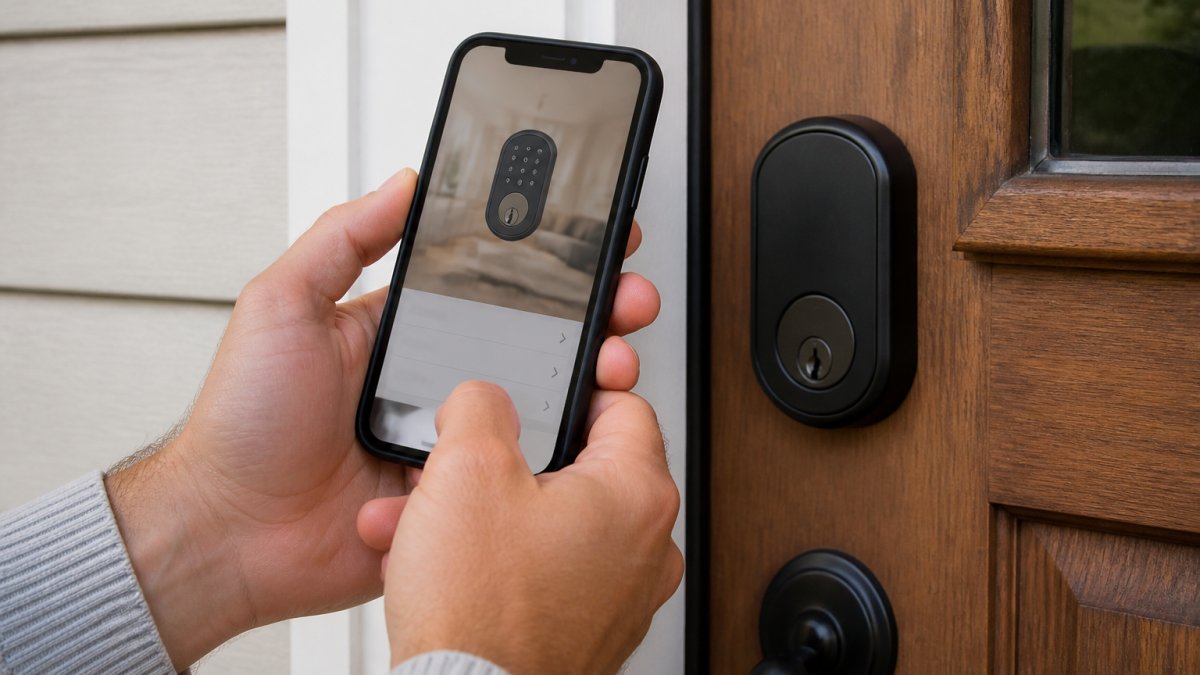
- Open the app and go to the lock's device settings.
- Find the Wi-Fi or network option, sometimes labeled "Connect to Wi-Fi" or under "Device Settings."
- Select your home network.
- Type your Wi-Fi password exactly and confirm.
- Wait up to a minute while the lock joins.
- Confirm it's online by locking and unlocking from the app on cellular data, not Wi-Fi.
That last test proves the lock is truly online, not just talking to your phone over Bluetooth.
Entering Your Network Name and Wi-Fi Password
Most connection failures trace back to a typo here. Passwords are case-sensitive, and one wrong character fails silently.
- Type the password into a notes app first, then paste it, so you can see it.
- Check that your phone hasn't autocorrected or added a space.
- If your network name is hidden, choose "Other" or "Manual" and type it yourself.
Smart Lock 2.4 GHz Wi-Fi: Why the Band Matters
Almost all smart locks only connect to a 2.4 GHz network, not 5 GHz. The 2.4 GHz band is slower but travels further and pushes through walls better, which is why lock makers use it.
If your router broadcasts one combined name for both bands, the lock may try the 5 GHz side and fail. Split them.
- Log into your router settings.
- Give the 2.4 GHz network its own name, like "Home-2.4."
- Connect the lock to that name instead.
You don't need to change your phone or laptop. Just point the lock at the 2.4 GHz name.
Smart Lock Wi-Fi Bridge Setup for Models That Need One
A smart lock Wi-Fi bridge is a small plug-in device that gives a Bluetooth-only lock a network connection. The bridge talks to the lock over Bluetooth and to your router over 2.4 GHz Wi-Fi, so the lock never sees your network password. Two links must succeed: bridge-to-lock and bridge-to-router.
First, Confirm You Actually Need a Bridge
Not every lock needs one, and buying a bridge you don't need is a common waste. Check these three things before you shop:
- Check the spec sheet or box. "Wi-Fi" listed as a built-in radio means it connects directly and needs no bridge. Only "Bluetooth" or "Bluetooth LE" means it needs a bridge or module for remote access.
- Check the app's device list. A direct-Wi-Fi lock appears under a Wi-Fi or network category; a Bluetooth-only lock appears under Bluetooth and prompts you to add a bridge or module.
- Check the lock body. Many bridge-compatible locks have a module bay or labeled port under the battery cover, meaning the lock was designed for a module rather than direct Wi-Fi.
If your lock is direct Wi-Fi, skip this section and return to the step-by-step Wi-Fi connection above. If it is Bluetooth-only or has a module bay, continue.
Bridge vs. Plug-In Module: They Are Not the Same
A bridge is a separate device that plugs into a wall outlet and sits in the room with the lock. A plug-in module is a small cartridge that seats inside the lock itself, usually under the battery cover, and adds Wi-Fi to that specific lock. The setup flow differs:
| Device | Where It Lives | What It Connects To | Typical Setup Order |
|---|---|---|---|
| Standalone bridge | Wall outlet near the lock | Lock over Bluetooth, router over 2.4 GHz Wi-Fi | Add bridge to app first, then link lock |
| Plug-in module | Inside the lock's module bay | Router over 2.4 GHz Wi-Fi directly | Add module in app, then re-pair the lock |
Mixing these up is a common source of confusion. If your lock takes a module, there is no separate bridge to plug in, and the module setup usually happens inside the lock's own device page in the app rather than as a new device.
Positioning the Bridge for a Reliable Bluetooth Link
Bluetooth range between a bridge and a lock is shorter than most people expect, especially through a metal door or masonry wall.
- Avoid putting the bridge behind the door or inside a metal cabinet. Metal blocks the Bluetooth signal.
- Keep it off the floor. Outlet height or a shelf beats a low outlet behind furniture.
- Stay away from the router and microwave. Both emit 2.4 GHz noise that can degrade the Bluetooth link.
If the app shows the bridge online but the lock keeps dropping, the bridge-to-lock link is the likely culprit. Move the bridge closer before you change any Wi-Fi settings.
Step-by-Step Bridge Setup
Bridge setup follows a fixed pattern across most brands. Yale's support instructions for connecting a lock to Wi-Fi direct users to the app's device settings and a Connect Bridge or Module setup option, which is typical of how these modules work.
- Plug the bridge into a power outlet within Bluetooth range of the lock, usually the same room and on the interior side of the door.
- Add the bridge as a new device in the app. Choose the bridge or hub category, not the lock category.
- Follow the in-app prompts to connect the bridge to your 2.4 GHz network. This bridge-to-router link uses your Wi-Fi password.
- Wait for the app to confirm the bridge is online. Do not proceed until it does.
- Link the lock to the bridge in the app. This bridge-to-lock link usually requires only proximity, not a password.
- Test remote access by locking and unlocking from the app on cellular data, not Wi-Fi.
When the Bridge Is Online but the Lock Is Not
A bridge that shows online in the app but a lock that shows offline means the bridge-to-router link succeeded and the bridge-to-lock link failed. Work through these in order:
- Move the bridge closer to the lock and retest.
- Re-seat the lock's batteries so the Bluetooth radio restarts.
- Remove and re-add the lock in the app so it re-links to the bridge.
Some locks now skip the bridge entirely. A Tuya Smart Door Lock setup video shows a lock connecting straight to home Wi-Fi with no hub or gateway. Check your model before buying a bridge you don't need.
When Your Smart Lock Won't Connect to Wi-Fi
A smart lock that won't connect to Wi-Fi usually has one of a handful of causes. Diagnose from the least destructive checks to the most destructive, so you can stop as soon as the lock comes online.
Step 1: Read the App's Error Message Before You Touch Anything
The app is your best diagnostic tool, and most people skip it. Before changing a setting, note exactly what the app says:
- "Incorrect password" or "Authentication failed", the Wi-Fi credential is wrong, or the lock is trying the 5 GHz band. Go to Step 2.
- "Network not found" or "Cannot reach network", the lock cannot see the 2.4 GHz network, usually a band or signal problem. Go to Step 3.
- "Connection timed out" or "Pairing failed", the lock and phone lost their Bluetooth link mid-setup, or the lock froze. Go to Step 4.
Step 2: Rule Out the Password and the Band
Password and band errors are the two most common causes and they look identical in the app. Check both at once:
- Retype the password slowly into a notes app first so you can see it, then paste it. Passwords are case-sensitive and one wrong character fails silently.
- Confirm the lock is pointed at the 2.4 GHz network name, not a combined name that may resolve to 5 GHz. If your router broadcasts one name for both bands, split them and give the 2.4 GHz network its own name.
- Check for hidden characters. A trailing space or an autocorrected capital letter will fail without a useful message.
If the password and band are correct and the app still says authentication failed, the lock may be holding a stale credential from a previous network. Remove the lock from the app, re-add it, and enter the credential fresh.
Step 3: Diagnose Signal and Network Visibility
If the app says the network is not found, the lock cannot see your 2.4 GHz network. Work through these in order:
- Check signal strength at the door. A phone speed test at the door is a rough proxy. If your phone shows one bar of 2.4 GHz at the door, the lock will struggle too.
- Move the router or add a mesh node near the door. A mesh node in the same room as the lock is usually the single most effective fix.
- Check for network restrictions. Guest networks, client isolation, MAC filtering, and captive portals can all block a lock even when the password is right. Put the lock on your main network, not a guest network.
Step 4: Fix a Pairing Timeout or Frozen Lock
A pairing timeout usually means the Bluetooth link between the phone and the lock dropped, or the lock's radio froze. Try these in order:
- Move your phone within a few feet of the lock and keep it there through the whole pairing step.
- Turn Bluetooth off and back on on your phone, then retry.
- Restart the lock by removing the batteries for about 30 seconds and putting them back. This keeps your settings.
- Re-pair the lock to the app if the restart does not help.
Step 5: Fix a Lock That Joined but Keeps Dropping
A lock that connects and then goes offline is usually a signal, power, or credential problem:
- Check the battery level. A low battery can pair but drop the connection under load. Replace the batteries even if the lock still operates.
- Check the 2.4 GHz signal at the door and add a mesh node if it is weak.
- Check for a router or password change. If you changed your Wi-Fi password or router, the lock still holds the old credential and must be reconnected in the app.
Step 6: Update the App and Firmware
If there is no error and the app simply spins, the app or lock firmware is likely out of date. Update the app from your phone's app store, then check the lock's device page for a firmware update. Mismatched firmware between a lock and its bridge or module is a known cause of connection failures.
Restart, Re-Pair, Reset: The Order That Saves You Work
These three actions are not interchangeable, and doing them out of order costs you time.
| Action | What It Keeps | What It Wipes | When to Use It |
|---|---|---|---|
| Restart | All settings, users, codes | Nothing | First resort for any freeze or drop |
| Re-pair | Lock settings and codes | The app-to-lock link only | When the app cannot see the lock |
| Factory reset | Nothing | All settings, users, codes, app link | Last resort only |
- Restart the lock. Remove the batteries for about 30 seconds, then put them back.
- Restart the bridge or router if you use one, and wait for it to come back online.
- Reconnect in the app by repeating the Wi-Fi step.
- Factory reset only as a last resort. This removes the lock from your app and erases its settings, so you'll pair it from scratch.
If the lock's battery dies while you're away and you can't get back in, our guide on what to do when a smart lock battery dies while you are away walks through your options.
What Wi-Fi Adds, What It Doesn't, and How to Secure It
Wi-Fi turns a smart lock into a remote device. Without it, a Bluetooth lock only works within range of the door.
What Wi-Fi does not do is keep the lock working. Many locks still open with a key, PIN code, or fingerprint when the network is down.
Security basics matter once the lock is online:
- Use a strong, unique password on the lock app account.
- Turn on two-factor authentication if the app offers it.
- Remove old users and guest codes you no longer need.
Schedule a Smart Lock Installation with Advanced Keys & Locks LLC
Connecting a smart lock to Wi-Fi is a fifteen-minute job when the lock, app, and network all cooperate.
Advanced Keys & Locks LLC provides certified and insured locksmiths for smart lock installation and setup, with upfront pricing and no hidden fees.
Get started with Advanced Keys & Locks LLC and get a quote for your smart lock installation.
Frequently Asked Questions
Do smart locks connect directly to Wi-Fi?
Some do, and some don't. Certain models, including Tuya-based smart door locks, connect straight to your home Wi-Fi network with no hub or gateway involved. Others rely on Bluetooth for phone control and need a separate Wi-Fi bridge or plug-in module to reach the internet. Check your lock's manual or the device list in its companion app before you start, because the setup path is different for each type.
Can I connect a smart lock to 5 GHz Wi-Fi?
Most smart locks only work on the 2.4 GHz band. That band travels farther and pushes through walls better, which is why lock makers favor it. If your router broadcasts one combined network name, the lock may struggle to join. Split the bands in your router settings so 2.4 GHz has its own name, then run the pairing process again and enter those credentials in the app.
Will my smart lock still work if the Wi-Fi goes out?
Yes. Basic lock operation does not depend on Wi-Fi. Many locks keep working through Bluetooth, PIN codes, or fingerprints when the network drops. You lose remote locking, lock status checks, and guest access from outside the home until the connection returns. Your key or keypad code still gets you in, so plan on those as the backup.
How do I reset a smart lock's Wi-Fi connection?
Start with the lock's own settings menu in the companion app and remove the saved network. If that fails, restart the lock by pulling the batteries for about 30 seconds and reinstalling them, then put the lock back into pairing mode. Re-enter the network name and password once the lock is discoverable again.