 how-to
7 Steps to Integrating Smart Locks With Alarm Systems
Last Updated: October 24, 2026
Quick Summary
Integrating smart locks with alarm systems means linking your door lock and security panel so they share commands and status through a hub that speaks the same wireless protocol. Pairing one lock takes about 30 to 60 minutes: put the panel in pairing mode, trigger the lock, set permissions, build automations, then test everything.
- A smart lock rarely talks to an alarm panel directly; it talks to a hub or panel that speaks the same wireless protocol.
- Confirm five things before buying: wireless protocol, panel support, hub or bridge, app control, and power backup.
- Ring works with select Z-Wave locks through a Ring Alarm hub or base station, not every smart deadbolt.
- Tie locking to arming and unlocking to disarming, but keep a keypad code as a manual fallback.
- A smart lock should fail safe, not fail locked, so confirm a mechanical key override and battery backup.
Table of Contents
- How Smart Locks Connect to Alarm Systems
- Smart Lock Alarm System Compatibility Checklist
- Smart Locks Compatible With Ring and Other Platforms
- Alarm.com Smart Door Locks and Panel Pairing
- Step-by-Step Setup: Pairing, Automation, and Testing
- Fail-Safe Behavior, Emergency Access, and Troubleshooting
- Smart Lock Security Best Practices
- Book a Smart Lock Integration Assessment
- Frequently Asked Questions
How Smart Locks Connect to Alarm Systems
We see the same mistake repeat: people buy a lock and a panel that speak different wireless languages, then wonder why nothing talks.
The payoff: one dashboard shows lock and alarm status together, real-time alerts fire when a door opens, guest access works without a key, and you can check remote locking from anywhere.
Below, we walk through the 7 steps to a working setup, from checking device compatibility to testing fail-safe behavior, starting with the compatibility checklist most guides skip.
Wireless Protocols, Hubs, and Panels
A smart lock rarely talks to an alarm panel directly. It talks to a hub or panel that speaks the same wireless protocol. Get the protocol wrong and pairing fails, every time.
The main protocols you'll meet:
- Z-Wave: Common in smart deadbolts and alarm panels. Long battery life, strong mesh network.
- Zigbee: Similar to Z-Wave, popular with some smart-home platforms.
- Wi-Fi: Direct connection, no hub needed, but heavier battery drain.
Your security hub is the translator. A Z-Wave lock needs a Z-Wave-capable panel or control hub. The Z-Wave Alliance device database lists certified products so you can check before you buy.
Smart Lock Alarm System Compatibility Checklist
Before you buy anything, confirm these five things. This checklist prevents most failed installs.
| Check | What to Confirm | Why It Matters |
|---|---|---|
| Wireless protocol | Lock and panel share Z-Wave, Zigbee, or Matter | No shared protocol, no pairing |
| Panel support | Your alarm panel lists the lock as supported | Firmware may not recognize it |
| Hub or bridge | You have the required hub for that lock | Some locks need a bridge |
| App control | Both devices appear in one mobile app | Centralized control depends on it |
| Power and backup | Lock has battery backup, panel has backup | Fail-safe access during outages |
Work through it in order:
- Write down your alarm panel model and firmware version.
- Check the lock's supported protocols and hub requirements.
- Confirm the smart-home platform supports both devices.
- Verify the lock appears on the panel maker's compatibility list.
- Plan for battery backup on the lock and backup power on the panel.
If you're new to smart locks, understand the benefits of smart lock installation before committing to a full alarm integration.
Smart Locks Compatible With Ring and Other Platforms
Smart locks compatible with Ring are limited to specific models: Ring works with select Z-Wave locks through a Ring Alarm hub or base station, not every smart deadbolt on the shelf. The same holds for Alarm.com, SimpliSafe, Abode, and most panels, the lock must match the platform's wireless protocol and be listed as supported.
Here's how the major platforms break down:
- Ring Alarm: Supports certain Z-Wave smart locks. The lock pairs to the Ring base station, then appears in the Ring app. Wi-Fi and Bluetooth-only locks generally will not pair, even if they work fine on their own.
- Alarm.com: Works with a range of Z-Wave door locks through Alarm.com panels and the Alarm.com app. Requires a compatible panel and an active service plan.
- SimpliSafe: Supports a narrow set of locks, mostly through its own base station and app; third-party Z-Wave locks are not universally supported.
A practical verification method that saves hours:
- Write down your exact panel or hub model and firmware version.
- Search the platform's official compatibility page for the lock's model number, not just the brand.
- Confirm the lock's wireless protocol on the box or spec sheet, Z-Wave, Zigbee, Wi-Fi, Bluetooth, Thread, or Matter.
- Check whether the lock needs a separate bridge or module (some Z-Wave locks need a manufacturer-specific module to expose user codes).
- Confirm which features survive: remote lock/unlock, user-code management, activity log, and automation triggers are not guaranteed to carry over.
Best for: homeowners inside one ecosystem who want a single app and will buy from the platform's supported list. Skip if: you're mixing brands and need cross-platform control, usually Matter or a third-party hub, and even then, verify feature-level support, not just pairing.
Ring's official help center lists supported lock models per hub. Check the platform's own compatibility page before buying; this one step saves hours of troubleshooting.
Alarm.com Smart Door Locks and Panel Pairing
Alarm.com smart door locks pair to an Alarm.com panel over Z-Wave, then show up in the Alarm.com app for remote locking, unlocking, and status checks.
What you get once paired:
- Remote locking and unlocking from the app
- Lock status and alarm status on one screen
- Activity log of who locked or unlocked, and when
The catch: Alarm.com locks need a compatible panel and an active service plan, the lock is only half the system.
Homeowners sometimes buy a Z-Wave lock, assume it will pair, and discover their older panel's firmware doesn't support it.
Step-by-Step Setup: Pairing, Automation, and Testing
Pairing a smart lock to an alarm system takes about 30 to 60 minutes for one lock. For a full residential rollout, follow the residential access control installation guide.
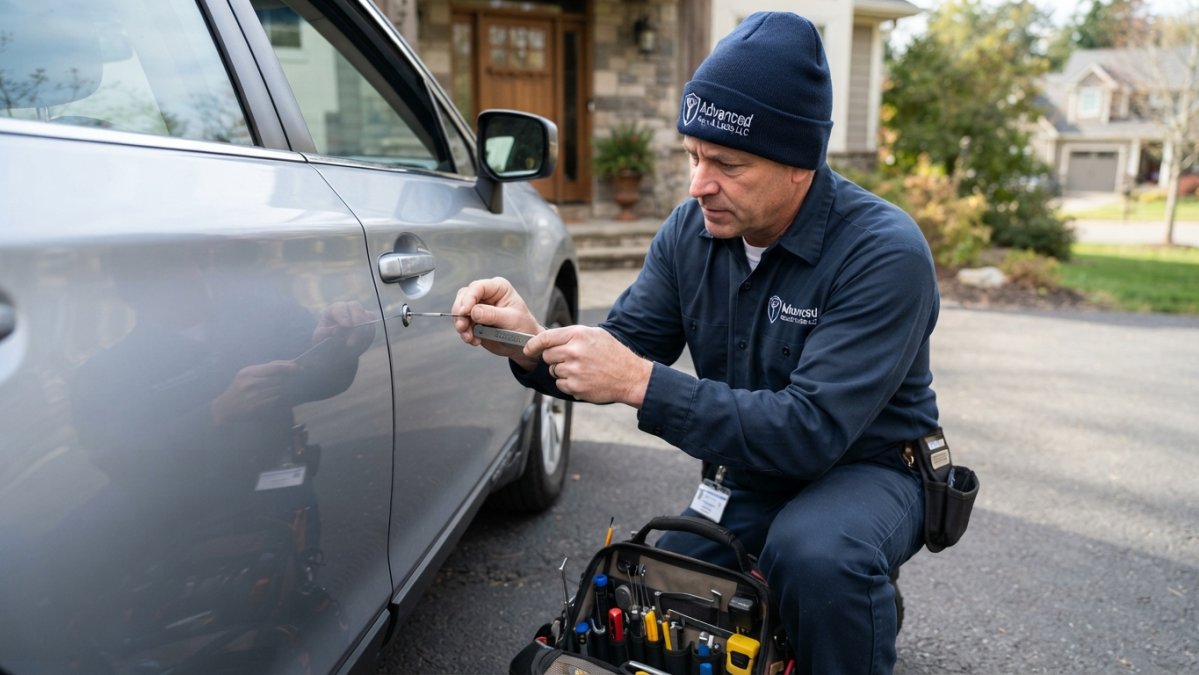
What you'll need:
- Your alarm panel and its master code
- The smart lock installed with fresh batteries
- The panel or lock maker's app on your phone
Step 1: Put the panel in pairing mode. [10 minutes] Open your panel's device settings and start "add device" or Z-Wave inclusion. Keep the panel close to the lock during pairing.
Step 2: Trigger pairing on the lock. [5 minutes] Follow the lock's instructions, usually a button press or a code sequence. The panel should detect it within a minute.
Step 4: Build automation scenarios. [15 minutes] Link locking to arming, and unlocking to disarming. More on this below.
Step 5: Test everything. [10 minutes] Lock and unlock remotely. Arm and disarm. Trigger the door sensor and confirm the alert lands. Test the keypad code as a backup.
Expected result: the lock and panel both respond from the app, and the activity log records each action.
Building Automation Scenarios That Actually Work
Good automation scenarios are simple and predictable: tie locking to arming and unlocking to disarming, with safety rules baked in. To see why these scenarios pay off, review the access control benefits for homes and rentals.
Scenarios that hold up in practice:
- Arm away, lock up: when you arm the system in away mode, the lock engages.
- Unlock to disarm: entering a valid code disarms the system within a set window.
- Night lock: a scheduled lock at a set time, with the system set to part arm.
Edge cases are where automations break: don't auto-unlock on every disarm, don't chain too many actions to one trigger, and always keep a keypad code as a manual fallback.
Fail-Safe Behavior, Emergency Access, and Troubleshooting
A smart lock should fail safe, not fail locked. If the battery dies or the network drops, you need a way in that doesn't depend on the app.
The safety layers to confirm:
- Mechanical key override on the lock, kept somewhere off-site or with a trusted neighbor.
- Battery backup on the lock, plus low-battery alerts pushed to your phone.
- Backup power on the alarm panel so it keeps running during an outage.
Common troubleshooting, in order:
- Lock won't pair: confirm the protocol matches and the panel is in inclusion mode. Move the panel closer.
- Drops off the network: check battery level and distance to the hub. Z-Wave mesh needs a nearby powered device.
- Automation doesn't fire: test the trigger alone, then add actions one at a time.
- App shows wrong status: refresh, then re-interview the device on the panel.
If a lock dies while you're away, skipping the mechanical key override turns a dead battery into a locksmith call. For a practical walkthrough of that situation, see what to do when a smart lock battery dies while you're away.
Smart Lock Security Best Practices
Security best practices for smart locks come down to permissions, codes, account security, and updates. The lock is only as strong as the accounts around it, and linking a lock to an alarm system creates a shared trust boundary most guides ignore.
Account and app security
- Two-factor authentication on every account that can control the lock or alarm: the lock app, the panel app, and any smart-home hub. A compromised account can expose lock status and, depending on permissions, unlock remotely.
- Unique passwords and a password manager. Reused passwords are the most common path into smart-home accounts.
- Review connected accounts and integrations quarterly. Remove old phones, tablets, and unused integrations; a lost or sold phone with an active session is a standing risk.
Codes and permissions
- Unique codes per person. No shared codes, the activity log is worthless if everyone uses the same number.
- Time-limited guest access. Set codes to expire for cleaners, sitters, and short-term guests. Pair the code with a disarm window only if the guest genuinely needs alarm access.
- Least privilege. Give admin access only to people who need to change settings; granting it to everyone "for convenience" erases the audit trail and hands over control of the whole system.
Privacy controls
- Limit app permissions to what the app actually needs (location, notifications, camera). Deny background location unless a geofence automation requires it.
- Understand what the integration shares. Linking a lock to an alarm account can share lock status, user codes, and event history across both platforms. Read both privacy policies and check whether either platform sells or shares device-level data.
- Encryption: confirm the lock and hub use encrypted wireless communication (Z-Wave S2, Zigbee with install code, or Matter). Older Z-Wave S0 pairing is weaker; prefer S2 where both devices support it.
Integration-specific risks
- Automation as an attack surface. An automation that unlocks on disarm, or disarms on unlock, can be triggered by anyone who can trigger the other side. Keep safety rules (like requiring a code to disarm) in place.
- Shared accounts across platforms. If the same email and password protect both the lock app and the alarm app, one breach exposes both. Use separate credentials and 2FA on each.
- Guest-code leakage. Temporary codes shared over text or email can be forwarded. Prefer in-app guest invites that expire and can be revoked.
One question that often arises is: can you rekey a smart lock, or do you replace it? This covers the options and when each makes sense.
Book a Smart Lock Integration Assessment
Pairing a lock to a panel is a weekend project; getting compatibility, fail-safe behavior, and automation logic right is where most homeowners stall.
Advanced Keys & Locks LLC handles smart lock installation and access control for homes, rentals, and commercial properties.
Get started with Advanced Keys & Locks LLC and pair your locks and alarm into one system you can trust.
Frequently Asked Questions
Can a smart lock connect to a home alarm system?
Yes, most modern smart locks can connect to an alarm system, but the method depends on the hardware. Z-Wave and Zigbee locks pair directly with compatible alarm panels, while Wi-Fi and Bluetooth locks usually connect through a hub or a platform like Ring or Alarm.com. Check that your panel supports the lock's wireless protocol before buying. If your panel is older, a bridge module or a platform upgrade may be required to make the smart lock alarm connection work.
What happens to a smart lock if Wi-Fi or power goes out?
Battery-powered smart locks keep working when the power goes out, and most retain stored access codes locally, so you can still unlock with a keypad or physical key. Wi-Fi outages block remote access and app control, but scheduled codes and manual entry still function. Z-Wave and Zigbee locks that rely on a hub will lose app control until the network returns. Keep a physical key stored off-site and check battery levels monthly so a dead battery never locks you out.
Can an existing deadbolt be upgraded to work with a security system?
Many standard deadbolts can be upgraded by replacing the interior thumb turn with a retrofit smart lock, which keeps your existing exterior hardware and keys. Full replacement is better when the door has a non-standard bore or the deadbolt is older. Before upgrading, confirm the alarm panel or hub supports the retrofit model's protocol, such as Z-Wave. A certified locksmith can verify fit and handle the installation so the lock aligns with your smart lock alarm setup.
Is it safe to use the same app for a smart lock and alarm system?
Using one app for both is convenient and generally safe when the platform enforces two-factor authentication and separate user permissions. The risk comes from shared credentials: give every household member or employee their own login, review access logs regularly, and revoke codes when someone moves out or leaves a job. Follow smart lock security best practices like unique PINs and firmware updates. If the app offers it, enable alerts for unlocks and disarming so you catch unusual activity quickly.